Frequently asked questions
Donate About Tutorials FAQ
Getting started
Entries
Audio, photos and video
Texts, sentences and grammar
Working together
Importing and exporting
Sharing and permissions
Devices, offline use and help
More about Living Dictionaries

Getting started

What is a Living Dictionary?

A Living Dictionary is a free online dictionary that a language community builds for itself. Each entry can hold the word in one or more writing systems, translations into other languages, audio recordings from named speakers, photos, video, example sentences and grammatical notes. Dictionaries can also hold whole texts, such as stories or songs, with their audio.

It runs in the web browser on any phone, tablet or computer. There is nothing to install and no fee for anyone, whether they build a dictionary or only read one. Living Dictionaries is run by the Living Tongues Institute for Endangered Languages, a non-profit.
Who should build a Living Dictionary?

Living Dictionaries are for endangered, under-documented and minority languages that real communities speak or sign. The people building them are usually:

  • Community members documenting their own language. You do not need to be a linguist, and you do not need to be fluent, but you should have a clear connection to the community and a good relationship with fluent speakers who can record.
  • Community members and researchers working together, where the researcher has a long-term, trusting relationship with the community and understands how the material should be shown online.

Anyone else is welcome to start a dictionary too. It stays unlisted (readable only by people who have the link) until the community's permission is clear.

How do I sign in?

Press Sign In at the top right of any page. Enter your email address and we send you a 6-digit code; type it in and you are signed in. There is no password to remember. You can also sign in with a Google account.

Use the same email address every time. Your dictionaries are tied to it.

How do I create a dictionary?

  1. Sign in.
  2. Go to Create a dictionary.
  3. Choose Start blank to begin your own dictionary, or Start with the showcase to try every feature on a ready-made Old English sample first.

Either way you get a sandbox: a private, fully working dictionary that only you can see. See What is a sandbox?

What is a sandbox?

Every new dictionary starts as a sandbox. It works like any other dictionary (you can add entries, record audio, upload photos, request an import or connect an AI agent) but only you can see it, and you cannot invite anyone yet.

A sandbox is deleted after 15 days without any activity. The countdown is shown at the top of the sandbox. If you have requested an import, the sandbox will not be deleted.

You can have one sandbox at a time. To start over, use Reset sandbox inside it. When your dictionary is ready, make it real: see the next question.

How do I turn my sandbox into a real dictionary?

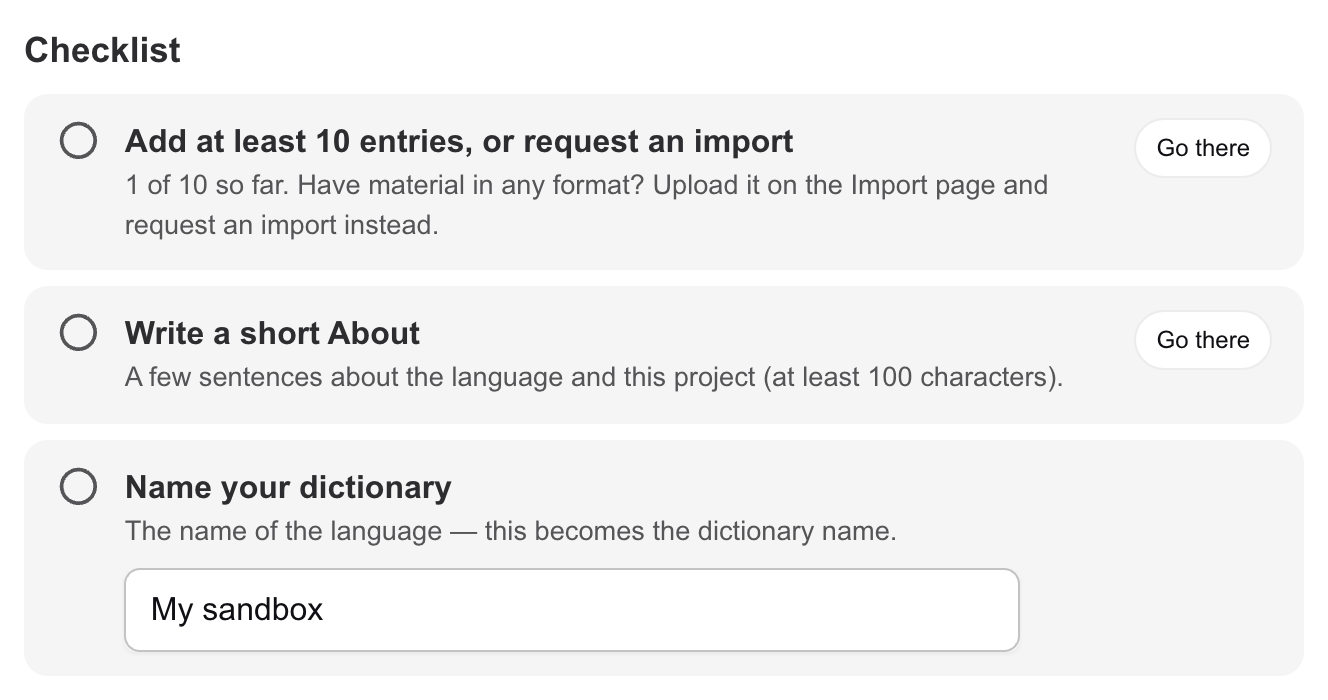
Press Make this real at the top of your sandbox (or open /my/publish). You will see a short checklist:

  1. Add at least 10 entries, or request an import.
  2. Write a short About section (at least 100 characters) about the language and the project.
  3. Give the dictionary the name of the language.
The Make this real checklist

Then answer a few questions we ask of every new dictionary: where the language is spoken, which languages to translate entries into, whether the community has given permission, and how you know the language. Pick the web address (URL) carefully. It cannot be changed later.

A real dictionary is permanent and you can invite managers and contributors. It starts unlisted: anyone with the link can read it, but it is not on the map or in the dictionary list. Our team reviews each new dictionary, and lists it publicly once the community's permission is clear. See public and unlisted. The Old English showcase cannot be made real. Reset to a blank sandbox to start your own.

Are there video tutorials?

Yes. The Tutorials page has short videos in English and Spanish, with captions in several languages, covering signing in, creating a dictionary and adding entries. Some details in the older videos look different now, but the steps are the same.

There is also a YouTube playlist of our older tutorials, a 24-minute presentation for languages of Africa, and recordings of past training webinars. We have no webinars scheduled right now.

Is there a list of words to start with?

Yes. The Living Tongues Master Elicitation List is a free list of everyday words and phrases, grouped by topic, that many teams use as prompts when they start a dictionary from nothing.

Is there an app to install?

No. Living Dictionaries is a website that works like an app. Open livingdictionaries.app in the browser on your phone and you can do everything there, including recording audio and taking photos.

If you want an icon on your home screen, sign in, open the menu under your name at the top right and choose Add to Home Screen. If that option is not there, use your browser's own menu: on an iPhone, tap the Share icon in Safari, then Add to Home Screen; in Chrome on Android, open the ⋮ menu and choose Add to Home screen or Install app.

Which languages can the website be shown in?

Use the Language menu at the top right of any page. The site interface is available in English, Español, Français, Deutsch, 简体中文, 繁體中文, Kiswahili, русский, עברית, العَرَبِيَّة‎, Português, Bahasa Indonesia, Bahasa Melayu, বাংলা, অসমীয়া, हिन्दी, Tiếng Việt, Polski, 한국어, Italiano, 日本語, Türkçe, Nederlands, Svenska and Čeština. The site remembers your choice.

This only changes the buttons and menus. The words in a dictionary, and the languages they are translated into, are set by each dictionary's team.

Entries

How do I add a new entry?

  1. Sign in and open your dictionary.
  2. On the Entries page, press Add Entry.
  3. Type the word or phrase and save.

The new entry opens right away. From there you can add translations, audio, photos and anything else. Managers and contributors can add entries; visitors cannot.

What can go into an entry?

Only the word itself is required. Everything else is optional, so fill in what your community needs. On an entry, press Add field to see what is available:

  • The word in each of your dictionary's writing systems, plus a phonetic (IPA) spelling
  • Translations (glosses) and definitions in your glossing languages
  • Part of speech, semantic domain, noun class, plural form and variants
  • Example sentences with their translations
  • Audio recordings, photos and video
  • Dialect, tags, notes, sources, scientific name, location on a map
  • Morphology and interlinear glossing
  • Links to related entries, such as synonyms, antonyms or other forms of the same word

What if a word has more than one meaning?

Give it more than one sense. On the entry, press Add sense. Each sense has its own translations, definition, part of speech, semantic domains, example sentences and photos, so you can describe each meaning separately.

Can I edit or delete an entry later?

Yes, at any time. Click any part of an entry to edit it. To delete the whole entry, use the trash button at the top of the entry page. Audio, photos and video can each be deleted or replaced on their own. Contributors can delete only what they added themselves (manager or contributor).

Managers can see the history of every change on the dictionary's History page, including who changed what and when.

How do people search a dictionary?

Type in the search box on the Entries page. Search looks at the words in every writing system, their translations and definitions, notes, phonetic spellings and more. It also finds a search term inside longer words, and it forgives small typos. You do not need to type accents or IPA symbols exactly: a plain-letter version usually finds the word.

Press Filters to narrow results by part of speech, semantic domain, dialect, tag, speaker, source, or whether an entry has audio, a photo or video. You can sort A–Z or by newest, jump to a letter, and switch between List, Table and Gallery views. The Sentences tab searches example sentences and texts.

My language has more than one writing system. How do I show them?

Managers can add writing systems (orthographies) on the dictionary's home page, next to Orthographies. The first one is the main writing system, used for the headword. Each one gets a name, and you can list the special characters it uses: those characters appear as tap buttons beside the search box so that anyone can type them. Each entry then has a place to write the word in every writing system you added.

Can I type IPA, tone marks and other special characters?

Yes. Any character in Unicode works in any field, including IPA symbols, tone marks, superscript numbers and combining accents.

  • The Phonetic field has a built-in IPA keyboard.
  • Fields for the word itself, translations and notes can show an on-screen keyboard for many languages and scripts.
  • Characters you list for a writing system appear as buttons beside the search box. See writing systems.

If a symbol shows as a box or looks wrong, it is usually a font problem on that one device, not a problem with the data. Copy the character from a Unicode source such as unicode-table.com rather than from a PDF, because PDFs often store look-alike characters.

What are glossing languages?

Glossing languages are the languages you translate your entries into, such as English, Spanish or Hindi. You choose them when you create the dictionary, and managers can add more later on the dictionary's home page. There are 300 to choose from. Visitors can search your dictionary in any of them.

You write the translations yourself; the dictionary does not translate automatically. Most dictionaries use one or two glossing languages, and some use five or more.

Glossing languages cannot be removed by managers, because entries may already use them. If you added one by mistake, contact us.

Can one dictionary cover several dialects?

Yes, as many as you like. Tag each entry with its dialect (or leave it blank). An entry can carry more than one dialect. Visitors can filter by dialect.

Managers and contributors can add, rename and merge dialects, and draw where each is spoken, under Settings → Dialects.

Whether to keep dialects in one dictionary or make a separate dictionary for each is up to the community. Both work. One dictionary with dialect tags keeps everything searchable in one place; separate dictionaries give each dialect its own home page.

What are tags?

Tags are your own labels for entries, for anything the built-in fields do not cover: a school unit, a recording session, "needs checking". Add them on an entry under Custom tags, and visitors can filter by them. Managers and contributors can rename and merge tags under Settings → Tags, and mark a tag Editors only to hide it from the public.

What are semantic domains?

Semantic domains are topic groups such as "Animals", "Body parts" or "Kinship". Tagging entries with them lets people browse every word on a topic, which is useful for teaching. An entry can have any number of domains, and if none fit you can type your own.

Our list is a simplified version of SemDom, shaped by our own elicitation work.

The full list of semantic domains
  • Universe and the natural world
    • Sky, weather and climate
    • Earth, geology and landscape
    • Water, bodies of water and the water cycle
    • Plants, trees and other vegetation
    • Animals
    • Colors
    • Birds
    • Fish and marine creatures
    • Insects and small creatures
    • Reptiles and amphibians
  • Humans, Social Relations and Organization
    • Body parts
    • Body functions
    • Senses and perception
    • Health, well-being and sickness
    • Life stages and rites of passage
    • Kinship and relationships
    • Social activities and interactions
    • Government and Law
  • Language and Communication
    • Mental actions
    • Emotions
    • Education and learning
  • Names
    • Names of people and clans
    • Place names
    • Sacred names
  • Daily life
    • Household
    • Agriculture
    • Food, cooking and foodways
    • Clothing and adornment
    • Cleanliness and hygiene
    • Sleep
    • Work and occupations
    • Animal husbandry
    • Tools and weapons
    • Finance and Business
    • Hunting and Fishing
    • Art, crafts and textiles
    • Construction
    • Sports and games
    • Transportation
    • Spirituality and Religion
    • Music and Entertainment
  • Physical Actions
    • Posture
    • Motion
    • Possession
    • Physical Impact
    • States and Characteristics
  • Quantities and Quantifiers
    • Numerals
    • Sizes and dimensions
    • Units of Measure
    • Quantifiers
  • Time
  • Location and Directions
  • Grammar
    • Case Markers / Adpositions
    • TAM
    • Polarity
    • Coordinators, Subordinators, Relativizers, Quotatives
    • Discourse Markers
    • Interjections
    • Ideophones, Expressives & Onomatopoeia
    • Classifiers
    • Pro-forms

What goes in the Morphology and Interlinearization fields?

Both are optional and mostly used by linguists. Morphology holds the word broken into its parts (morphemes), such as un-tie-d for English untied. Interlinearization holds the gloss of each part, using the Leipzig Glossing Rules abbreviations, such as REV-tie-PST.

How do I link related words?

On an entry, add a related entry and choose how the two are related: synonym, antonym, spelling variant, dialectal variant, derived from, borrowed from, part of, and others. The link shows on both entries.

To group words from related languages or dialects that come from the same ancestor word, use a word family.

What are word families?

A word family (also called a cognate set) groups words that descend from one older word, such as father, Vater and pater. You can add the reconstructed ancestor form, its meaning and the level of reconstruction (for example Proto-Polynesian), then add member entries with notes. The family page shows the sound correspondences between the members.

Word families are on the Word families page of each dictionary. Most dictionaries will not need them; they are mainly for comparative work across dialects or related languages.

Audio, photos and video

How do I record audio for a word?

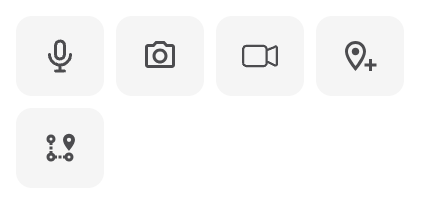
  1. Open the entry and press the microphone button (Add Audio) in the row of add buttons.

    The add buttons on an entry: microphone, camera, video and two map buttons
  2. Choose the speaker, or add a new one. See speakers.

  3. Press Prepare to Record with Microphone. If your browser asks to use the microphone, allow it.

  4. Press Tap to Record, say the word, then press Stop Recording.

  5. Listen back. If you are happy with it, save it.

This works on phones and computers. If the browser never asks for the microphone, or you blocked it by mistake, allow it in the browser's site settings and reload the page.

If nothing was recorded, the app tells you. The usual causes are a muted microphone, the system blocking microphone access, or the wrong input device selected in your sound settings.

Can I upload audio files I already have?

Yes. On the entry, press the microphone button, then Select Audio File, or drag the file onto the entry. Common formats work, including MP3, WAV, M4A, AAC, OGG and FLAC. AIFF, AC3 and WMA files are not supported: convert them to WAV or MP3 first. Each file can be up to 25 MB.

File names do not matter. You do not need to rename files or remove accents.

To add many recordings at once, ask for an import.

Can an entry have more than one recording?

Yes. Add as many recordings as you like, for example the same word from several speakers or from different dialects. Each recording is labeled with its speaker.

If a word has no recording of its own but appears in a recorded text, the entry can also play the word as it sounds inside that text. It is marked Heard in a text.

How do I add a speaker?

When you add audio or video, choose Add New Speaker and fill in the name. Birthplace, age range and gender are optional. You can be a speaker in your own dictionary.

Before you save, the speaker has to agree that their recordings can be public online. Only add recordings of people who have given that permission.

Each dictionary has a Speakers page where managers can edit speakers, see their recordings and combine duplicate speaker records. If you do not know who is speaking, for example in an old archive recording, cite a source instead of a speaker.

How do I add a photo?

Open the entry and press the camera button, or drag an image onto the entry. On a phone you can take a new picture or pick one from your photo library. A sense can have several photos.

Any common image format works, including JPG, PNG and iPhone HEIC photos. Each file can be up to 10 MB. You do not need to resize photos first; we make smaller copies for fast loading and keep your original.

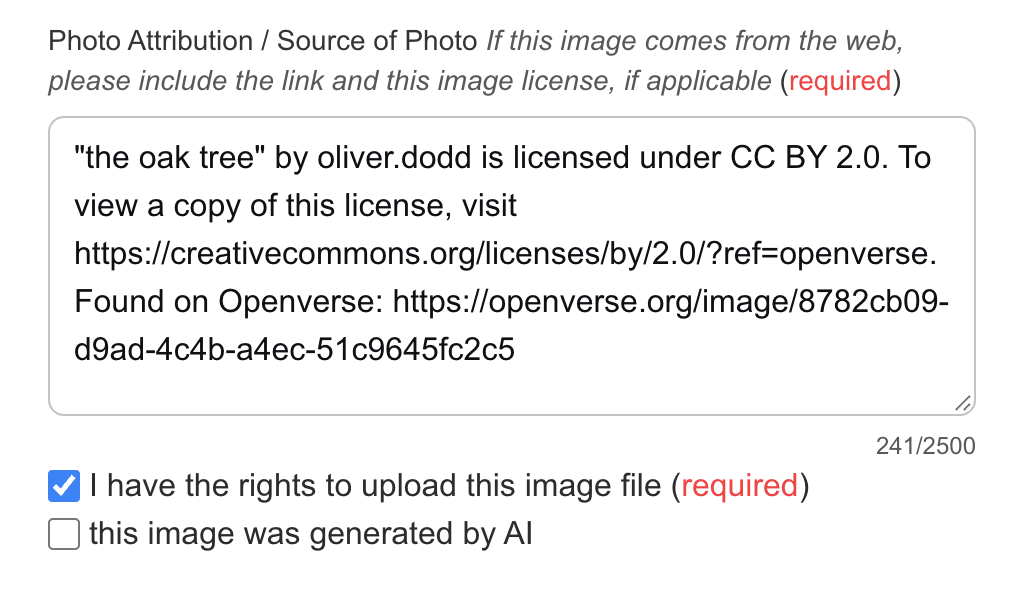
Each photo has a Source field. If you did not take the photo yourself, write where it came from and its license.

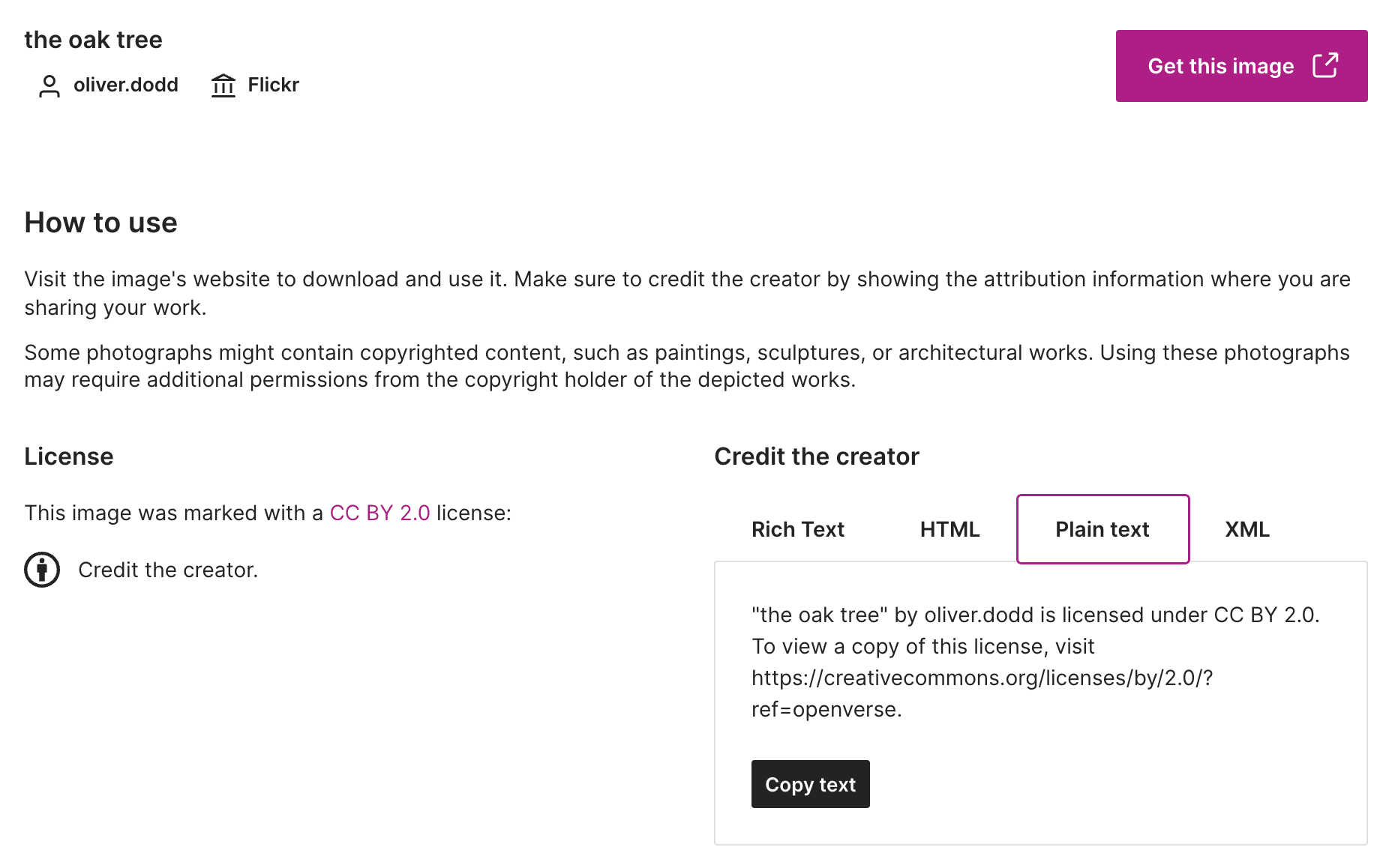
Where can I find free images to use?

Try Openverse (formerly Creative Commons search). Filter by license, check that the license allows your use, and put the photographer and license in the photo's Source field.

Can I add video?

Yes. Open the entry and press the video camera button (Add Video). You can:

  • Upload a video file (up to 100 MB)
  • Record a video with your camera in the browser
  • Paste a link to a video on YouTube or Vimeo

Video works the same way on example sentences and texts.

Do I need an internet connection to record or upload?

Yes. Recording, uploading and playing audio, photos and video need a connection. Text edits are different: see Can I use a dictionary without internet?

Texts, sentences and grammar

How do I add an example sentence?

Open the entry and add an Example Sentence to the sense it illustrates. Write the sentence, then its translation into your glossing languages. You can attach audio, photos or video to a sentence, the same way as on an entry.

All sentences, including those inside texts, can be searched from the Sentences tab on the Entries page.

Can I add stories, songs or other longer texts?

Yes. Open the dictionary's Texts page and press New text. Give it a title and paste or type the text. It is split into sentences for you; check the split, merge or break sentences where needed, then press Create text. After that you can translate each sentence and add more sentences at the end.

You can group texts into collections, tag them, mark their dialect and source, and link different versions of the same work (for example the same story told in two dialects).

Can a text have audio that follows along?

Yes. Drop an audio file onto a text or a sentence to attach it. Once the audio has word timings, each word lights up as it is spoken, and readers can tap a word to play from that point.

Managers and contributors can set the timings with Adjust timings, by dragging sentence and word blocks on the waveform. Managers also have Auto-align, which sets the timings automatically. Check the result, because it does not get every word right.

How are words in sentences linked to entries?

Every sentence is split into words, and each word is matched to the entry it most likely belongs to. Click a word to confirm the match, pick the right entry if there are several, create a new entry for it, or ignore it (useful for names and function words). Confirmed words show the entry's gloss under the sentence.

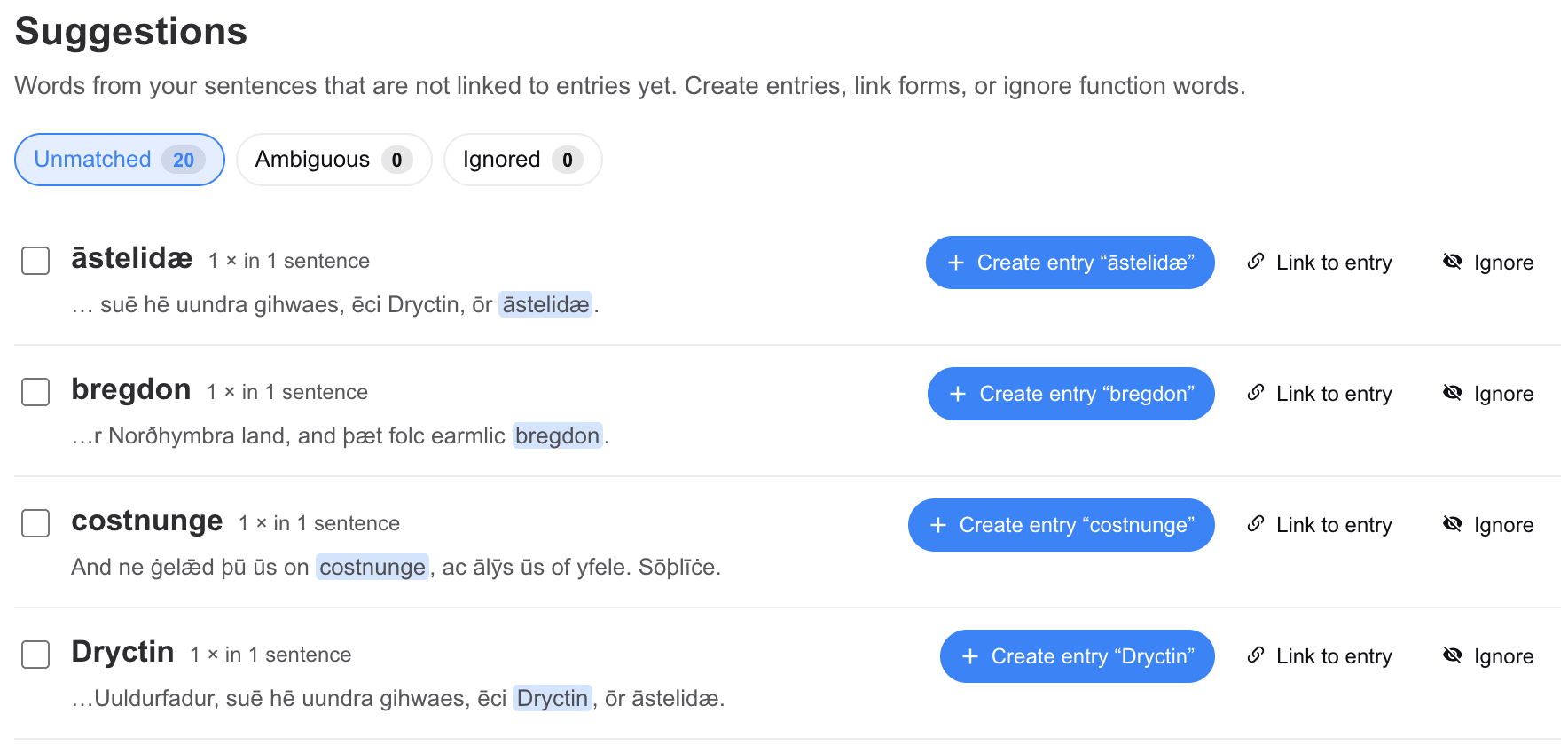
A text shows how many of its words are linked. Words that are not in the dictionary yet are collected on the Suggestions page, where you can create entries for them or ignore them in bulk. This is a quick way to grow a dictionary from recorded stories.

What are the About and Grammar pages for?

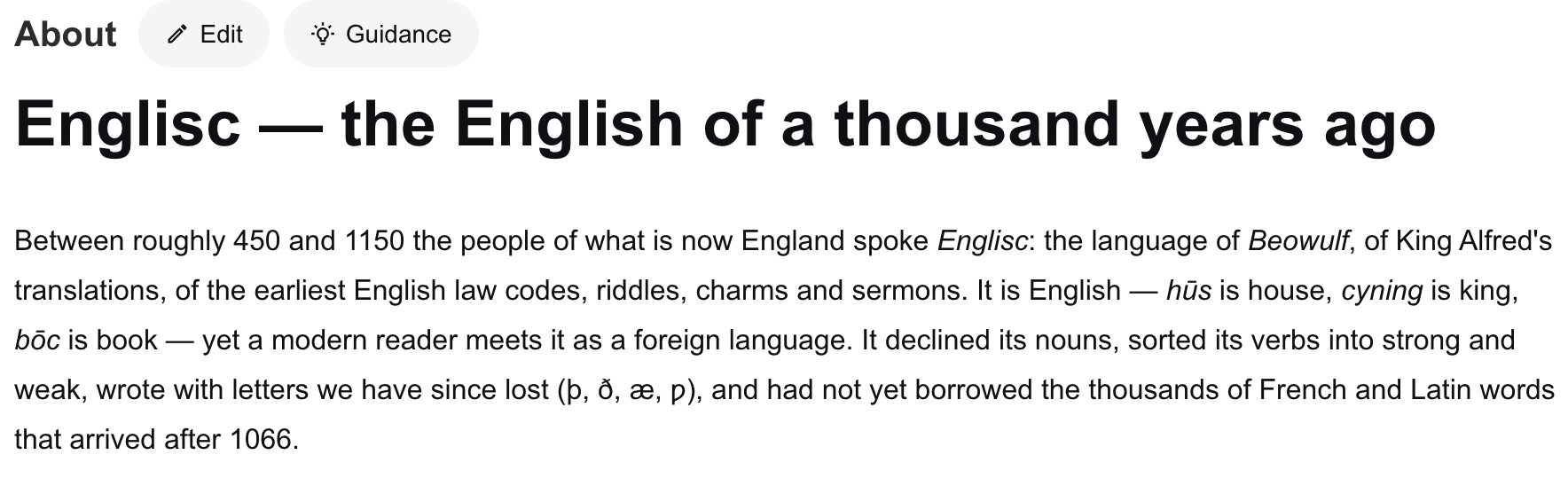
About describes the language and the project: where the language is spoken, who built the dictionary, whose voices are in it, where the material came from and how to contact the team. A short About is required before a sandbox can become a real dictionary, and it is the first thing many visitors read.

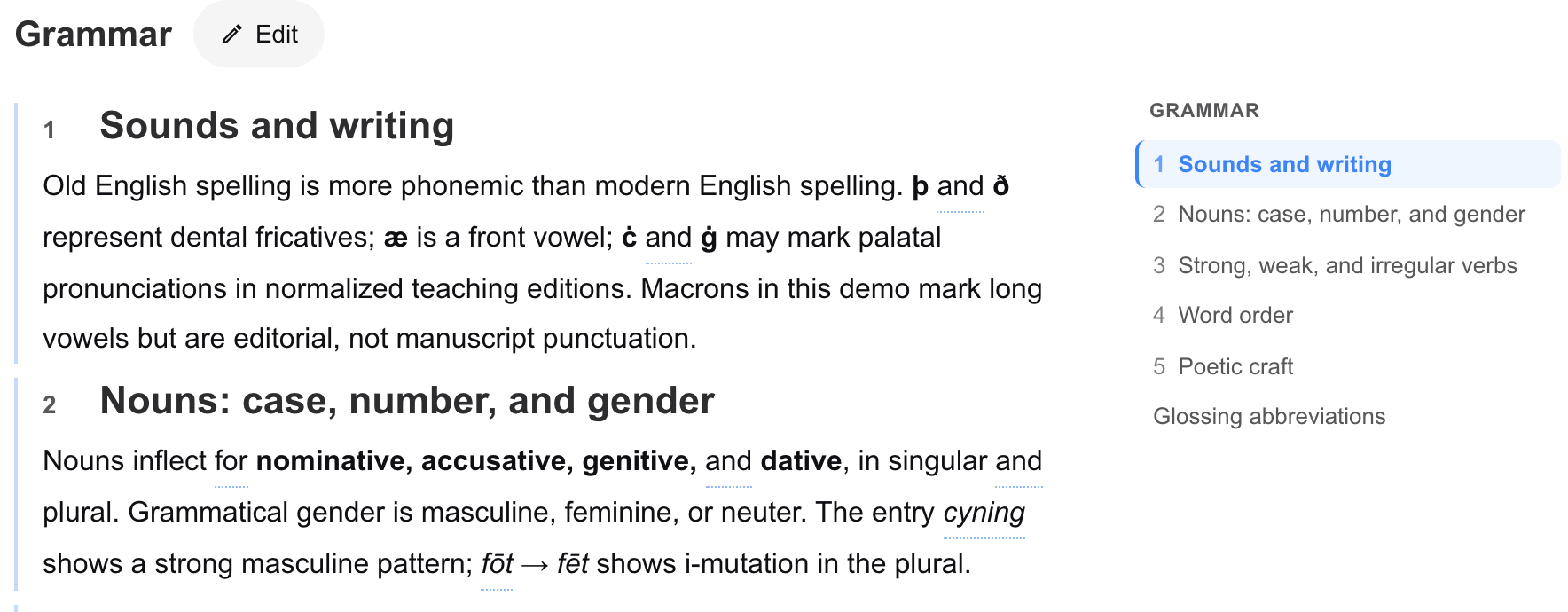
Grammar is for notes on how the language works, organized in sections and subsections. Sections can include example sentences from the dictionary with their glosses, and a list of the glossing abbreviations you use. You can also add a bibliography there.

How do I cite where my data came from?

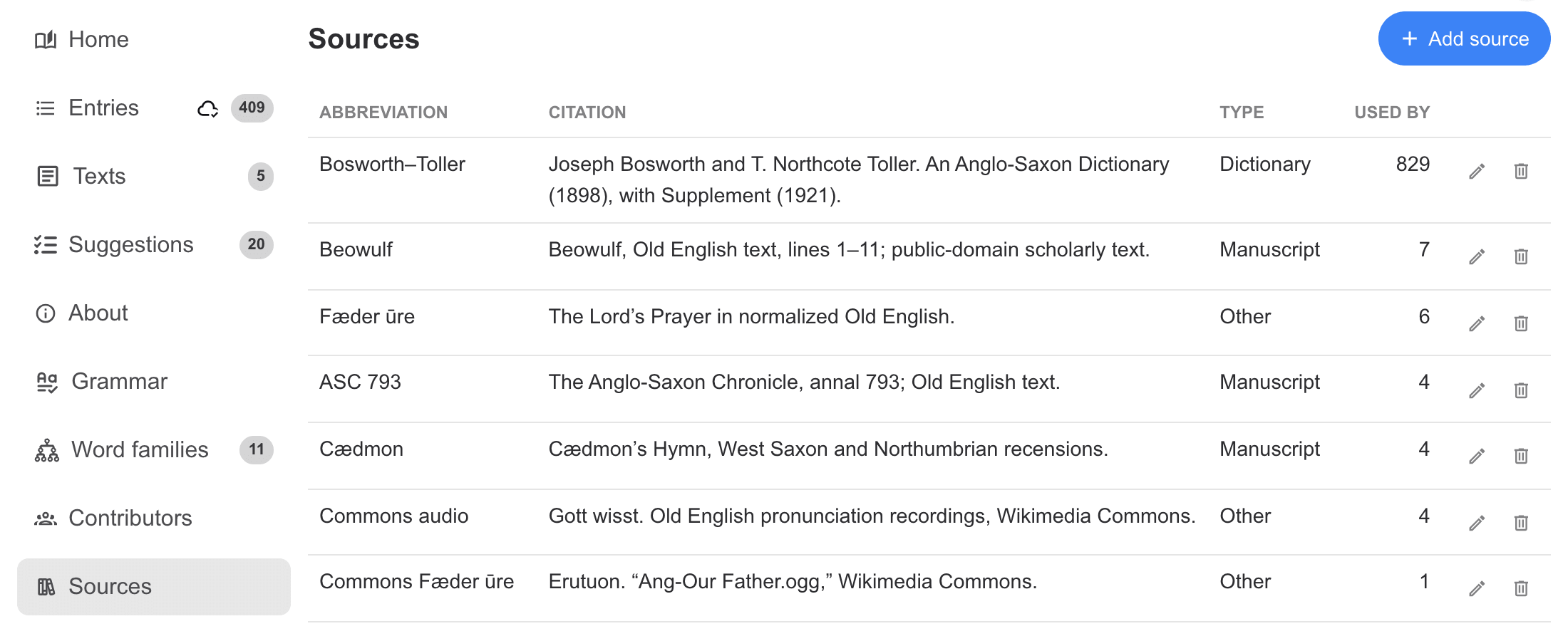
Add each book, word list or recording collection you used on the dictionary's Sources page, with its citation. Then mark entries, senses, sentences, texts and recordings with the source they came from, optionally with a page number. Visitors see the citation, and the Sources page works as a legend for everything you cite.

Working together

How do I invite someone to work on my dictionary?

Open your dictionary's Contributors page and press Invite a Manager or Invite Contributors, then enter the person's email address.

If they already have a Living Dictionaries account with that email, they get the role right away and an email telling them so. If not, they get an email with a link: they open it, create an account and press Accept Invitation.

Only managers can invite people. A sandbox cannot have other members; make it real first.

What is the difference between a manager and a contributor?

Both can add and edit entries, sentences, texts, audio, photos and video.

Managers can delete anything. Contributors can delete only what they added themselves, such as a duplicate entry or a bad recording. This protects the dictionary from accidental deletions. A contributor can still remove a tag from an entry or unlink a sentence.

Managers can also invite people, change the dictionary's name, languages, writing systems and settings, request imports, export the data, create API keys, see the full change history, and choose whether the dictionary is listed publicly.

A manager can make a contributor a manager with Make manager on the Contributors page. Only the Living Dictionaries team can change a manager back to a contributor or remove a manager, so promote people you trust.

How many people can work on one dictionary?

There is no limit. Many teams split the work: some people type entries, others record speakers, others check translations.

Can several people edit at the same time?

Yes, from anywhere in the world. Each person's changes are saved right away and appear for everyone else within about half a minute, without reloading. If two people change the same field at nearly the same moment, the later change wins, so agree on who works on which entries.

Managers can see who changed what on the History page, and on each entry with the history button.

Someone else's dictionary has my language. How do I join their team?

Open that dictionary and press Contact this dictionary's team (on its home page or its Contributors page), and choose Join the team. You need to be signed in. Your message goes by email to that dictionary's managers, and they reply to you directly. Whether to add you is their decision.

How do I credit the people who built the dictionary?

The Contributors page lists the managers and contributors with accounts. Managers can also add people without accounts there with Write in Contributor, for example elders, speakers or earlier researchers, and can add partner organizations with their logos.

At the bottom of the page is How to Cite. Managers can add the authors' names there so they appear in the citation that visitors copy.

Importing and exporting

Can you import my existing data?

Yes, from any format: spreadsheets, Word documents, FLEx or LIFT exports, Toolbox and Shoebox files, Lexique Pro, ELAN, old database backups, and even PDF scans of printed dictionaries. Audio and image files can come along too. Our team uses AI tools with human review to read your material, so you do not need to put it into a template or reformat anything.

There is no minimum size. A list of 50 words and a dictionary of 20,000 entries both work.

How do I send you my files for import?

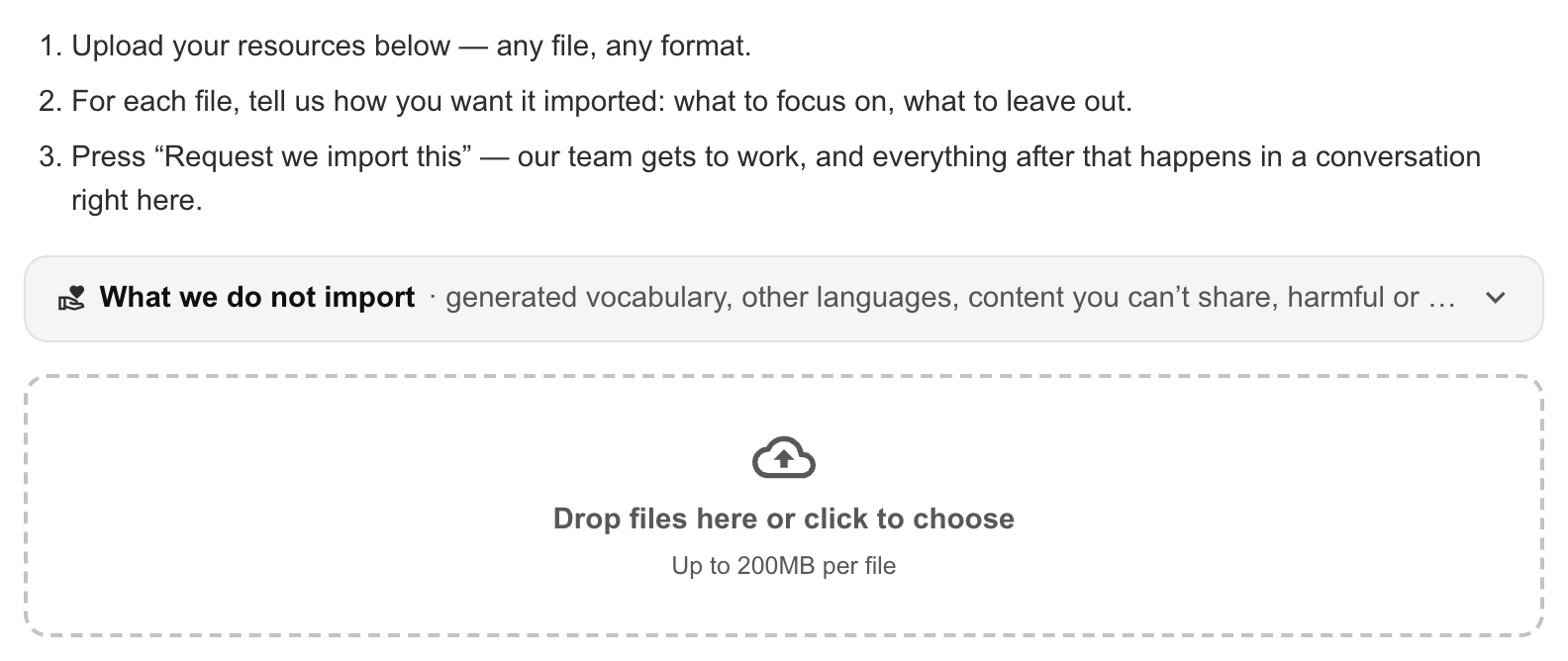
  1. Open your dictionary's Import page. Only managers can use it.
  2. Drop your files into the box, or click it to choose them. You can add several files, each up to 200 MB.
  3. For each file, write how you want it imported under How should we import this?: what to bring in, what to leave out, which column is which language. If the material comes from a published source, add the citation under Source.
  4. Press Request we import this.
The Import page: steps and the box to drop files into

Our team takes it from there. Everything after that happens in the Import conversation on the same page: we ask questions there, you answer there, and you get an email when something needs your attention. When the import is done, you will find a report there too.

If you are working in a sandbox, requesting an import keeps it from being deleted. You can make it a real dictionary while the import is in progress.

Can I import more data later?

Yes. Follow the same steps whenever you have more material. If the new file overlaps with what is already in the dictionary, say so in your instructions. We check new material against existing entries so you do not end up with duplicates.

After an import, make corrections in the dictionary itself, not in your old spreadsheet. The dictionary is now the up-to-date copy.

Is there anything you will not import?

Yes. Living Dictionaries exists to document languages as their communities actually use them. Our team reviews every request, and we decline to import:

  • Invented or generated vocabulary: word lists produced by combining parts, by AI, or by any other automatic process, that are not attested in the language as people speak or write it.
  • Material unrelated to the dictionary's language, such as a general-purpose lexical database or a word list from another language loaded as if it were this one.
  • Content you do not have the right to share: published dictionaries or other works still under copyright, unless you hold the rights or have the author's or publisher's permission. We will ask how to credit the source.
  • Harmful or inappropriate content, such as hate speech, pornography or harassment, or anything else unsuitable for a public resource used by language communities, families and schools.
  • Private personal data without consent: names, contact details or recordings of people who have not agreed to appear in a public dictionary.

If you are not sure whether your material fits, say so in your instructions and we will talk it through in the import conversation. See also our Terms of Use.

Can I import the data myself?

Yes, if you are comfortable using an AI coding agent such as Claude Code or Codex. A manager can create an API key on the dictionary's Agents page. Your agent then reads your files and writes entries through our API. The Agents page gives you the exact instructions to hand your agent. Every change an agent makes is recorded in the dictionary's history under the agent's and your name.

If you have never used an AI coding agent, use the Import page and let our team do it.

How do I export my dictionary?

Managers can download everything at any time from the dictionary's Export page. Your data belongs to you and your community.

  • Spreadsheet (CSV): all entries in one table, with links to every image, audio and video file.
  • Media files: your original images, audio and video. File names match the spreadsheet.
  • Database (SQLite): the most complete copy, with every relationship intact.
  • Print (PDF): opens the print view; save it as a PDF from your browser's print dialog.

Can I print my dictionary?

Yes. On the Entries page, switch to the Print view, choose columns, font sizes and which fields to show, then use your browser's print dialog to print or save a PDF. Filters apply, so you can print one topic or one dialect.

By default only managers and contributors can print. To let visitors print too, a manager can turn on Allow Viewers to Print Dictionary under Settings.

Can apps and websites use our dictionary data?

Yes, with your permission. Every dictionary can be read and written through our API with keys that a manager creates on the Agents page: a read key for pulling data out, a write key for adding or changing entries. Someone building a learning app or a website for your community can use a read key to show your words, audio and photos.

If someone asks to use your data, see Can I reuse content from a dictionary?

Sharing and permissions

What is the difference between public and unlisted?

A public dictionary appears on our world map, in the dictionary list and in search results, so anyone can find it.

An unlisted dictionary does not appear in any of those places, and search engines are asked not to index it. But it is not private: anyone who has the link can read it. Share the link only with people you want to read it.

Either way, only the managers and contributors you invite can edit.

Every new dictionary starts unlisted. A dictionary can only become public with the language community's consent. To ask for it to be listed, a manager ticks List this dictionary publicly under Settings (the About section has to be filled in first), confirms the community's permission, and then contacts us. Unticking it makes the dictionary unlisted again right away.

Can I make my dictionary completely private?

A sandbox is private: only you can see it. A real dictionary is either public or unlisted, and an unlisted dictionary can be read by anyone with the link.

In rare cases, such as material a community does not want outsiders to see at all, we can close a dictionary to everyone except its team. Contact us to discuss it.

Who owns the content in a dictionary?

The language community and the people who contributed it. Living Dictionaries does not claim ownership of any words, recordings, photos or other content you add. We own only the Living Dictionaries name and software. The details are in our Terms of Use.

Can I reuse content from someone else's dictionary?

Ask the dictionary's team first. A dictionary being public does not mean its content is free to reuse. Words, recordings and photos often come with permissions from speakers and communities, and a dictionary can have several rights holders, such as community members, researchers and partner organizations. Approval from Living Dictionaries is not enough, and attribution does not replace permission.

This applies to any plan to copy, download, collect or build content from a dictionary into another product: an app, a course, a book, a dataset or an AI model.

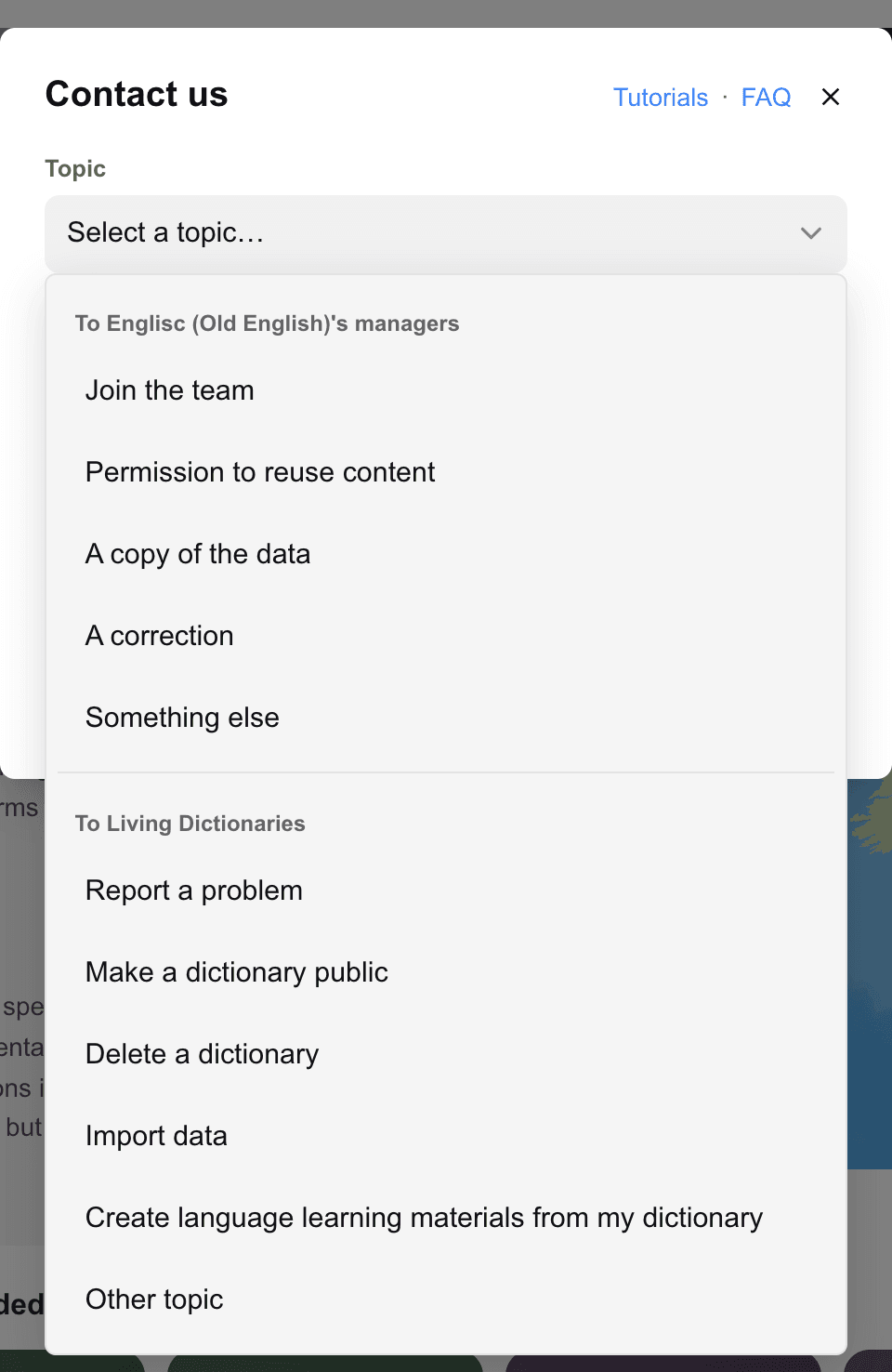
To ask, open the dictionary and press Contact this dictionary's team, then choose Permission to reuse content or A copy of the data. See the next question.

How do I contact the people who run a dictionary?

Open the dictionary and press Contact this dictionary's team. It is on the dictionary's home page (in the Using this dictionary box) and on its Contributors page. You can also choose a team topic in the Contact Us form while you are inside a dictionary.

You need to be signed in. Your message goes by email to that dictionary's managers, and they reply to your email address directly, when and if they choose. Living Dictionaries does not make decisions for them. You get a copy of your message once it is delivered.

How do I cite a dictionary?

Each dictionary's home page has a How to cite section with a ready-made citation, also shown at the bottom of its Contributors page. To cite a single entry, link to the entry's page: every entry has its own permanent web address, and the share button on the entry copies it.

Can I change my dictionary's web address?

No. The web address (URL) is permanent so that links, citations and bookmarks keep working. You can change the dictionary's name at any time on its home page.

How do I delete a dictionary?

A manager can ask for it under Settings → Delete Dictionary, which sends a request to our team. A sandbox can be wiped at any time with Reset sandbox, and is deleted on its own after 15 days without activity.

Can I make a dictionary for a constructed language?

Yes, but our focus is natural human languages, especially endangered and minority ones, and our team is small. Dictionaries for constructed languages (conlangs) are not listed publicly, and we do not import data for them. Mark the language as constructed when you create the dictionary. If we find derogatory content, we may delete the dictionary.

Devices, offline use and help

Which devices and browsers work?

Any recent phone, tablet or computer, in an up-to-date Chrome, Firefox, Edge or Safari. You can do all the work on a phone, including recording audio and taking photos.

Very old devices may not be able to open dictionaries. If that happens, the page says so. Nothing is lost: your work is saved on our servers and will be there when you sign in on a newer device.

Can I use a dictionary without internet?

Partly. When you open a dictionary, a copy of its words is saved on your device. That is why search is fast, and it means that if your connection drops while you are using it, you can keep searching, reading and editing that dictionary.

Edits you make while offline are saved on your device and sent automatically when you are back online. The sync status in the dictionary's side menu shows Offline — will sync when back online until then, and Synced once everything has arrived.

Some things always need a connection: signing in, creating a dictionary, inviting people, and recording, uploading or playing audio, photos and video.

Do not clear your browser's data, or use a private or incognito window, for work you have not synced yet. That deletes the copy on your device, including any changes that have not been sent.

The sync status says there is an error. What should I do?

Tap the sync status to try again. If it keeps failing, reload the page. Your changes stay saved on the device in the meantime. If the message comes back, contact us before resetting anything, so you do not lose changes that have not reached the server.

A dictionary will not open on my device. What can I do?

Reload the page first. If it still fails, the page offers Reset and re-download, which throws away the copy on your device and downloads a fresh one. If you edit that dictionary and may have changes that never reached the server, contact us before resetting, because resetting deletes them.

How do I report a problem or ask for help?

Press Contact Us at the top of any page, choose a topic such as Report a problem, and write your message. Screenshots and the web address of the page help us a lot. We reply by email.

Inside a dictionary, the same form also lets you write to that dictionary's own team instead of to us. See How do I contact the people who run a dictionary?

Is the site accessible for people with disabilities?

We try to make it so. If something does not work with your screen reader, keyboard or other assistive tools, tell us and we will work on it.

More about Living Dictionaries

Has research been published about Living Dictionaries?

Yes. Our publications:

  • Anderson, Gregory D. S., and Anna Luisa Daigneault. 2021. Living Dictionaries: An Electronic Lexicography Tool for Community Activists. In Kosem, I., Cukr, M., Jakubíček, M., Kallas, J., Krek, S. & Tiberius, C. (eds.), Electronic lexicography in the 21st century. Proceedings of the eLex 2021 conference. 5–7 July 2021, virtual. Brno: Lexical Computing CZ, s.r.o. bit.ly/elex-paper-2021
  • Daigneault, Anna Luisa, and Gregory D. S. Anderson. 2023. Living Dictionaries: A Platform for Indigenous and Under-Resourced Languages. Dictionaries: Journal of the Dictionary Society of North America 44(2), 57–74. doi.org/10.1353/dic.2023.a915065
  • Daigneault, Anna Luisa, and Gregory D. S. Anderson. 2025. Citizen Linguists and Decolonial Lexicography: Co-creative Dictionary-building in Grassroots Digital Language Documentation. In Lachler, J. et al. (eds.), Proceedings of the 8th Workshop on the Use of Computational Methods for the Study of Endangered Languages (ComputEL-8), Honolulu, Hawaii. aclanthology.org/volumes/2025.computel-main

How did Living Dictionaries start?

The platform began in 2006 as the "Talking Dictionary" software of Living Tongues linguists Gregory D. S. Anderson and K. David Harrison. In 2020, Living Tongues Institute renamed it Living Dictionaries. Read more on the About page.

Can I turn my dictionary into a language course?

Yes. 7000 Languages, a non-profit that makes free online courses for minority and Indigenous languages, can help you build a course from your dictionary. Email them at info@7000.org with a link to your dictionary, the name of your language and where it is spoken.

Your dictionary's data can also feed your own apps and printed materials. See export and API.

What are ISO 639-3 codes and Glottocodes?

They are standard identifiers for languages. An ISO 639-3 code is a three-letter code, maintained by SIL International and used by Ethnologue. A Glottocode comes from Glottolog and can also identify dialects and language families.

Managers can add both on the dictionary's home page. They help people and other archives find your dictionary. If you do not know them, leave them blank.

Where can I learn linguistics for free?

MIT offers free university courses online. Start with Introduction to Linguistics (24.900), then try phonology and syntax: MIT OpenCourseWare.

Can I help translate the website into my language?

Possibly. Open Contact Us and choose Volunteer to review interface translations, and tell us which language you speak.

What challenges does the Living Dictionaries team face?

Many language activists have taken up Living Dictionaries since the Covid years, but some barriers remain. Long-term funding is hard to secure. Many communities have weak or expensive internet access, and many people need digital training before they can start. Some of the activists working on the platform also face hostile policies and racial discrimination in their countries, and their work often goes unseen.

We apply for grants, offer digital training sessions to people around the world, and built the site so that a copy of a dictionary stays on your device and keeps working when the connection drops. We also try to raise public awareness of the language activists we work with.

How can I support Living Dictionaries?

Living Dictionaries is free for everyone and runs on grants and donations. You can donate by PayPal or by check through Living Tongues Institute.

Are there jobs working on Living Dictionaries?

See the careers page on the Living Tongues website.